Why SaaS Event Tracking Is Different
Most GA4 event tracking guides focus on ecommerce — add to cart, checkout, purchase. But SaaS funnels don’t look like that. Your conversion events are signups, trial activations, feature adoption, and upgrades. GA4 doesn’t ship with those out of the box.
When I set up tracking for SaaS clients, the biggest mistake I see is treating GA4 like a pageview counter. You install the tag, watch traffic numbers, and wonder why you can’t answer basic questions like “what percentage of trial users actually activate?” or “which features correlate with conversion?”
This guide walks you through setting up a complete GA4 event tracking system for a SaaS website — from the measurement plan to custom events, key event configuration, and debugging. If you haven’t set up GA4 yet, start with our complete GA4 guide for marketers, then come back here for the SaaS-specific event layer.
GA4 Event Model: What You Need to Know
GA4 uses an event-based data model — every user interaction is an event, and every event can carry parameters. There are no “goals” or “pageviews” as separate concepts. Everything is an event.
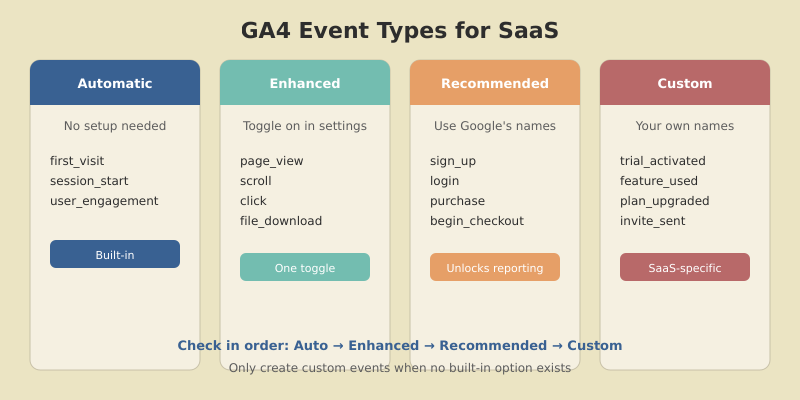
GA4 has four event types, and understanding them saves you from building things that already exist:
| Event Type | Examples | Setup Required |
|---|---|---|
| Automatically collected | first_visit, session_start, user_engagement |
None — tracked by default |
| Enhanced measurement | page_view, scroll, click, file_download |
Toggle on in GA4 settings |
| Recommended events | sign_up, login, purchase, begin_checkout |
Manual — use Google’s naming conventions |
| Custom events | trial_activated, feature_used, plan_upgraded |
Manual — your own naming |
The rule is simple: check Google’s recommended events list first. If an event exists there (like sign_up), use their name — it unlocks built-in reporting features. Only create custom events for SaaS-specific interactions that don’t have a recommended equivalent.
Step 1 — Create Your SaaS Measurement Plan
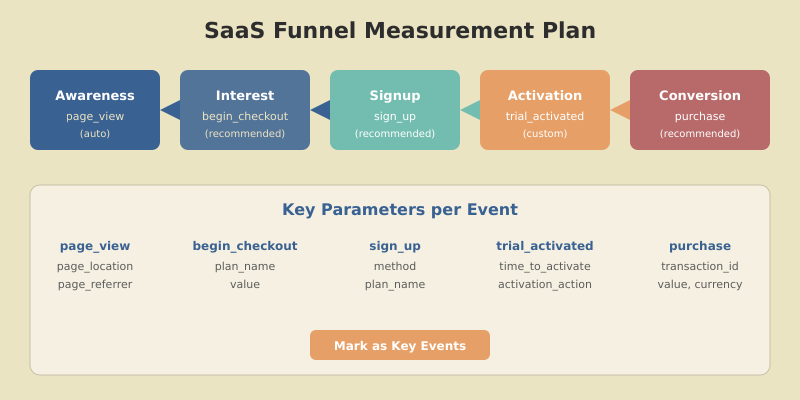
Before touching any code, map your SaaS funnel to GA4 events. A measurement plan prevents the two most common tracking mistakes: tracking everything (noise) and tracking too little (blind spots).
Here’s the measurement plan template I use for every SaaS client:
| Funnel Stage | User Action | GA4 Event Name | Key Parameters |
|---|---|---|---|
| Awareness | Visits pricing page | page_view (auto) |
page_location |
| Interest | Clicks “Start free trial” | begin_checkout |
plan_name, value |
| Signup | Completes registration | sign_up |
method (email, Google, SSO) |
| Activation | Completes onboarding / reaches aha moment | trial_activated (custom) |
activation_step, time_to_activate |
| Engagement | Uses key feature | feature_used (custom) |
feature_name, usage_count |
| Conversion | Upgrades to paid plan | purchase |
transaction_id, value, currency |
| Expansion | Invites team member | invite_sent (custom) |
invite_count, team_size |
Pro tip: Define your “activation event” before anything else. This is the single action that correlates most strongly with long-term retention. For Slack it was sending 2,000 messages. For Dropbox it was uploading a file. Find yours and build your tracking around it.
Step 2 — Set Up Google Tag Manager
You can implement GA4 events with hardcoded gtag() calls, but I strongly recommend Google Tag Manager (GTM) instead. GTM lets marketers and analysts add, modify, and debug events without touching production code — which means you’re not waiting on engineering sprints for every tracking change.
GTM Container Setup
If you don’t have GTM installed yet:
- Create a GTM account at tagmanager.google.com
- Add the container snippet to your site’s
<head>and<body> - Create a GA4 Configuration tag with your Measurement ID (
G-XXXXXXX) - Set the trigger to “All Pages”
- Publish the container
Data Layer Architecture
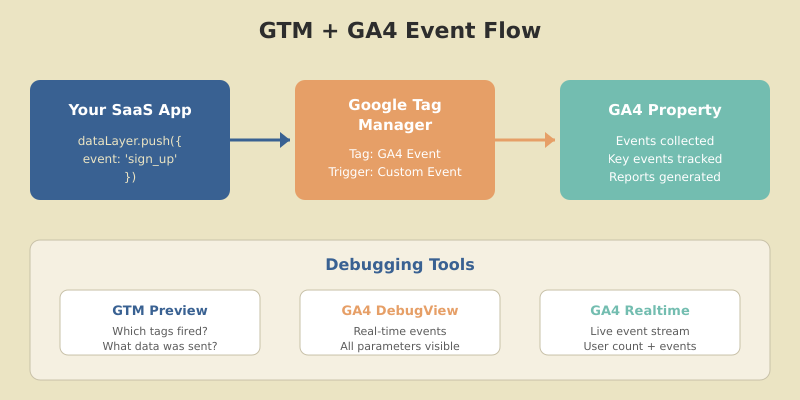
For SaaS event tracking, you need your application to push event data to the GTM data layer. This is the bridge between your product and your analytics. Here’s the pattern:
// Push to data layer when user signs up
window.dataLayer = window.dataLayer || [];
dataLayer.push({
  'event': 'sign_up',
  'method': 'email',        // or 'google', 'sso'
  'plan_name': 'starter'    // custom parameter
});

// Push when user activates (reaches aha moment)
dataLayer.push({
  'event': 'trial_activated',
  'activation_step': 'first_project_created',
  'time_to_activate': 340   // seconds
});

// Push when user upgrades to paid
dataLayer.push({
  'event': 'purchase',
  'transaction_id': 'TXN-12345',
  'value': 49.00,
  'currency': 'USD',
  'plan_name': 'pro_monthly'
});
Ask your engineering team to add these dataLayer.push() calls at the right moments in the application. This is the only code change needed — everything else happens in GTM.
Step 3 — Create GA4 Event Tags in GTM
With the data layer pushing events, create corresponding GA4 Event tags in GTM to send them to your analytics property.
Example: Tracking the sign_up Event
- In GTM, go to Tags → New
- Tag type: Google Analytics: GA4 Event
- Configuration tag: select your GA4 config tag
- Event name:
sign_up - Event parameters:
- Parameter name:
method→ Value:{{dlv - method}} - Parameter name:
plan_name→ Value:{{dlv - plan_name}}
- Parameter name:
- Trigger: Custom Event → Event name:
sign_up - Save and name the tag “GA4 — sign_up”
Repeat this process for each event in your measurement plan. The naming convention matters — keep tags consistent: GA4 — {event_name}.
Naming conventions for custom events
Use snake_case for all event names (e.g., trial_activated, not Trial Activated). Keep names under 40 characters. Use consistent prefixes for related events: onboarding_step_1, onboarding_step_2, onboarding_complete.
Step 4 — Mark Key Events (Conversions)
Not every event is a conversion. In GA4, you mark specific events as key events (formerly called “conversions”) to tell Google which user actions matter most to your business.
For a typical SaaS product, mark these as key events:
| Key Event | Why It Matters | Priority |
|---|---|---|
sign_up |
Top of funnel — measures acquisition effectiveness | High |
trial_activated |
Strongest predictor of conversion | Critical |
purchase |
Revenue event — connects marketing to revenue | Critical |
plan_upgraded |
Expansion revenue — key to NRR growth | High |
To mark an event as a key event: go to GA4 → Admin → Events, find the event, and toggle “Mark as key event”. Once marked, key events appear in acquisition reports, Google Ads integrations, and the conversions report.
Step 5 — Track the SaaS Activation Funnel
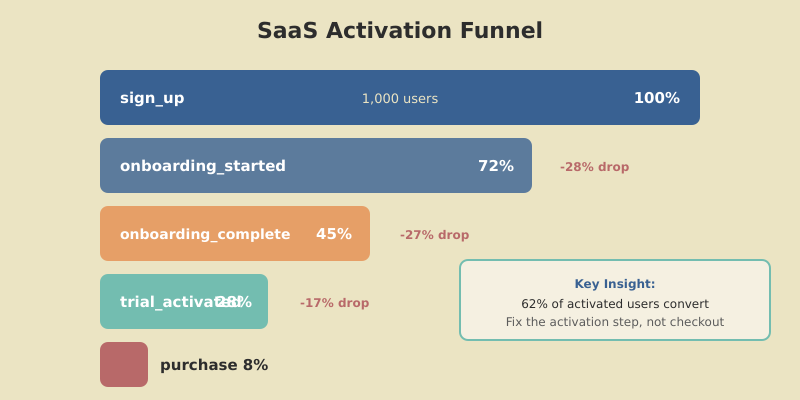
Activation is where SaaS tracking gets interesting — and where most implementations fall short. The activation funnel tracks the journey from signup to “aha moment,” and it’s the most important funnel in any SaaS product.
Here’s how I structure activation tracking:
onboarding_started
Fires when the user begins the onboarding flow. Parameters: onboarding_type (guided, self-serve).
onboarding_step_completed
Fires at each onboarding step. Parameters: step_name (profile_setup, integration_connected, first_action). This lets you build a funnel exploration and find exactly where users drop off.
trial_activated
Fires when the user reaches the activation milestone — the moment they experience core value. Parameters: time_to_activate (seconds since signup), activation_action (what they did).
With these three events, you can build a Funnel Exploration in GA4 that shows your activation rate at each step. When I set this up for a project management SaaS, we discovered that 62% of users who completed “create first project” went on to convert — but only 28% of signups ever reached that step. That insight led to a redesigned onboarding that boosted activation by 40%.
Step 6 — Debug and Validate Your Events
Never publish tracking changes without debugging. GA4 provides two essential tools:
GA4 DebugView
Go to GA4 → Admin → DebugView. Enable debug mode by either:
- Installing the Google Analytics Debugger Chrome extension
- Adding
?debug_mode=trueto your URL - Setting
'debug_mode': truein your GTM GA4 config tag
DebugView shows events in real-time as they fire, with all parameters visible. Walk through your entire funnel — signup, activation, upgrade — and verify every event appears with the correct parameters.
GTM Preview Mode
In GTM, click Preview to open Tag Assistant. This shows you which tags fired on each page, what triggered them, and what data was sent. Use this to verify that your data layer pushes are being picked up by the correct GTM tags.
Common debugging issues
Events not showing up? Check that the data layer push happens after GTM loads. Parameters missing? Verify your data layer variable names match exactly (case-sensitive). Duplicate events? Make sure your trigger fires once, not on every page. GA4 data can take 24–48 hours to appear in standard reports — use DebugView and Realtime for immediate validation.
Step 7 — Build SaaS-Specific Reports
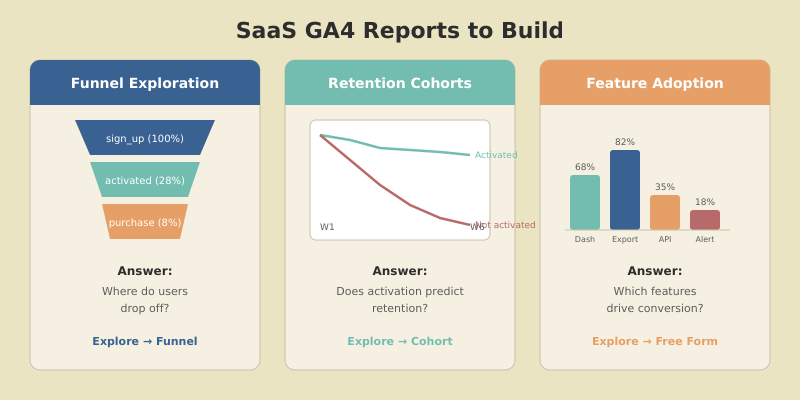
Once your events are flowing, build reports that answer the questions your SaaS team actually asks:
Funnel Exploration: Signup → Activation → Purchase
In GA4, go to Explore → Funnel Exploration. Add your funnel steps: sign_up → trial_activated → purchase. This report shows your overall conversion funnel and where users drop off. Break it down by method (signup source) to see which acquisition channels produce the highest-quality users.
User Retention by Activation Status
Create a segment for activated users (trial_activated = true) and another for non-activated users. Compare their retention cohorts. This proves (or disproves) that your activation event actually predicts long-term retention — which is critical for validating your measurement plan.
Feature Adoption Dashboard
If you’re tracking feature_used events, build an exploration that shows which features correlate with conversion. Sort by conversion rate to find your “sticky features” — the ones that, once used, make a user significantly more likely to upgrade.
Event Tracking Checklist
Before you consider your GA4 implementation complete, verify every item:
- Measurement plan documented — every tracked event mapped to a business question
- Recommended events used where possible —
sign_up,login,purchaseuse Google’s naming - Custom events follow naming conventions —
snake_case, under 40 characters, consistent prefixes - Key events marked —
sign_up,trial_activated,purchaseat minimum - Parameters registered as custom dimensions — in GA4 → Admin → Custom definitions
- DebugView validation passed — every event fires with correct parameters
- Cross-domain tracking configured — if your marketing site and app are on different domains
- Data retention set to 14 months — GA4 → Admin → Data Settings → Data Retention
FAQ
How many custom events should a SaaS website track in GA4?
Most SaaS products need 8–15 custom events beyond GA4’s automatic and recommended events. Focus on your core funnel (signup, activation, upgrade) and 3–5 key feature usage events. GA4 allows up to 500 distinct event names per property, but tracking too many creates noise that makes analysis harder.
Should I use gtag() or Google Tag Manager for GA4 events?
Use Google Tag Manager whenever possible. GTM lets you add, modify, and debug events without code deployments, which means faster iteration and less engineering dependency. Direct gtag() calls make sense only for single-page apps with complex state management where the data layer approach adds overhead.
What is a key event in GA4 and how is it different from a conversion?
Key events replaced “conversions” in GA4’s terminology in 2024. Functionally, they’re the same — events you mark as important for your business. Key events appear in acquisition reports, integrate with Google Ads for bidding optimization, and are highlighted across GA4’s standard reports.
How do I track the SaaS activation event in GA4?
Create a custom event called trial_activated that fires when a user completes your defined activation milestone — the action that best predicts long-term retention. Push it via the data layer with parameters like time_to_activate and activation_action, then mark it as a key event in GA4.
Why are my GA4 custom events not showing in reports?
GA4 standard reports can take 24–48 hours to populate. Use DebugView or Realtime reports for immediate validation. Common issues include: data layer push firing before GTM loads, mismatched event names between GTM trigger and data layer, or parameters showing as “(not set)” due to unregistered custom dimensions.
What to Track Next
A solid GA4 event tracking implementation gives you the foundation to answer every question about your SaaS funnel. You’ll know exactly where users drop off, which features drive upgrades, and which acquisition channels produce the highest-LTV customers.
Start with the measurement plan — map your funnel stages to events before writing any code. Set up GTM and the data layer. Implement your core events: sign_up, trial_activated, purchase. Debug everything in DebugView. Then expand to feature tracking and advanced explorations.
For the complete GA4 picture — including setup, configuration, and reporting beyond event tracking — see our GA4 complete guide for marketers. If you’re running into data quality issues like “(not set)” values in your reports, we’ve covered how to diagnose and fix those too.