How to Fix GA4 “(not set)” and Unassigned Traffic
Every GA4 property I audit has some percentage of “(not set)” traffic — it’s universal. If you’re staring at your GA4 not set traffic source data wondering where your visitors actually came from, you’re not alone. Last quarter, I audited a SaaS company’s GA4 where 31% of all sessions showed as Unassigned. After implementing the fixes in this guide, we got it down to under 4% within two weeks. The remaining 4% was almost entirely consent-blocked users — an irreducible minimum.
The frustrating part? GA4 treats “(not set)” and “Unassigned” as two entirely different problems, but most guides lump them together. That leads people down the wrong troubleshooting path. This article separates them clearly, explains the root causes of each, and gives you step-by-step fixes you can implement today. If you’re new to GA4 or need a refresher on its data model, my complete GA4 guide for marketers covers the foundations you’ll need.
In This Article
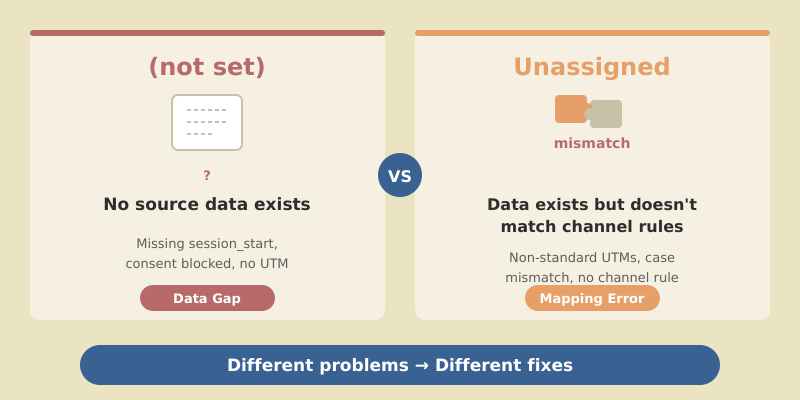
“(not set)” vs “Unassigned”: They’re Different Problems
Open your GA4 property, navigate to Reports > Acquisition > Traffic acquisition, and look at the Session default channel group column. You’ll likely see both — but they mean completely different things.
“(not set)” means GA4 has no data at all for that dimension. Source, medium, and campaign are blank. This is a data collection problem — something went wrong before data reached GA4.
“Unassigned” means GA4 does have source/medium data, but it doesn’t match any Default Channel Group rule. This is a classification problem — your channel rules need updating.
| Attribute | “(not set)” | “Unassigned” |
|---|---|---|
| Source/medium data | Missing entirely | Present but unmatched |
| Root cause | Data collection failure | Channel grouping mismatch |
| Where to fix | GTM, tag config, consent setup | Admin > Channel Groups |
| Common culprit | Broken session_start, consent mode |
Non-standard UTM values |
| Difficulty to fix | Medium to Hard | Easy to Medium |
| Can reach 0%? | No (consent-blocked users always exist) | Yes (with correct channel rules) |
Key takeaway: If you see “(not set)” in the Source/medium column, it’s a collection problem. If Source/medium shows actual values like newsletter / email-blast but the channel group says “Unassigned,” it’s a classification problem. Check Source/medium first — that tells you which fix path to follow.
What Causes “(not set)” in GA4 Traffic Sources
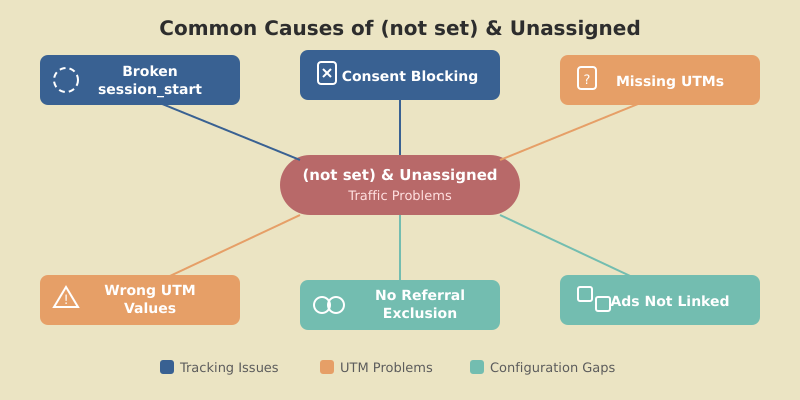
Once you’ve confirmed you have a “(not set)” problem (blank source/medium), identify which root causes apply. Most properties have two or three happening simultaneously.
Missing or Broken session_start Event
This is the number one cause I encounter. The session_start event carries attribution data — it records where a session originated. If it doesn’t fire correctly, GA4 has no source/medium to attribute the session to. Common scenarios where this breaks:
- Your Google Tag (
gtag.js) or GTM container loads after the user has already triggered page interactions - A consent management platform delays tag firing past the point where GA4 can associate the session
- Custom GTM triggers accidentally prevent the default
session_startfrom firing - Single-page applications (SPAs) that don’t properly reinitialize GA4 on route changes
You can verify this in GA4 > Admin > DebugView. Open your site in a new incognito window and watch for the session_start event. If it doesn’t appear, or appears without traffic_type parameters, you’ve found your problem.
Consent Mode Blocking Attribution Data
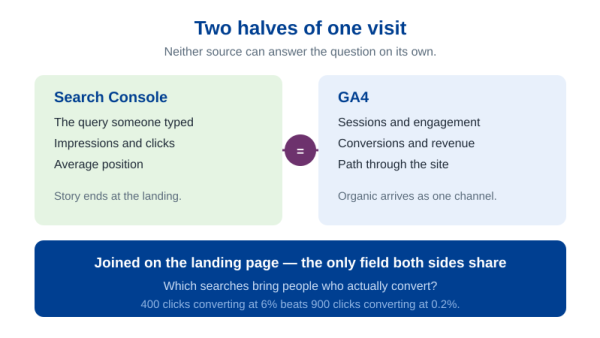
If you’ve implemented Google Consent Mode v2, users who decline analytics cookies generate sessions with missing attribution data. GA4 sends “cookieless pings” that register as sessions but lack source/medium information. Google’s behavioral modeling tries to fill the gaps, but it doesn’t work well for properties under 1,000 daily users. This consent gap is also the first reason Search Console clicks and GA4 sessions never agree — worth remembering before you blend GA4 with Search Console in Looker Studio and someone asks which number is broken.
Session Timeout and Re-Entry Without Referrer
GA4’s default session timeout is 30 minutes. If a user returns after 31 minutes without a referrer (bookmark re-entries, certain browsers, HTTPS-to-HTTP transitions), GA4 creates a new session with no source data. This is especially common with content-heavy sites where users leave mid-article and return later via direct access.
Missing UTM Parameters on Campaign Links
Any external link — emails, social posts, partner sites, ads — needs UTM parameters. Without them, GA4 relies on referrer data alone, which privacy settings, redirects, or platform restrictions can strip. Common offenders I find in audits:
- Email marketing links without any UTM tags
- Social media bio links that weren’t tagged
- Links in PDFs, presentations, or offline materials
- Affiliate or partner links missing campaign parameters
- Internal links between subdomains without cross-domain tracking
Google Ads Auto-Tagging Issues
If you run Google Ads and rely on auto-tagging (GCLID), several things can break the attribution chain:
- Auto-tagging disabled in Google Ads account settings
- Google Ads not linked to GA4 (check
Admin > Product Links > Google Ads) - GCLID stripped by redirects — landing page redirects drop query parameters
- URL parameter conflicts — CMS or CDN configurations strip
gclid
Always verify the Ads-GA4 link is active and test a click-through from an ad to confirm the GCLID survives the full redirect chain.
What Causes “Unassigned” Traffic in GA4
Unassigned traffic is easier to fix because the data itself is fine — it’s just not matching your channel rules.
Non-Standard UTM Values
GA4’s Default Channel Grouping uses specific utm_medium values to classify traffic. If your campaigns use non-standard values, GA4 can’t categorize them. As Julius Fedorovicius from Analytics Mania explains, this is the most common cause of Unassigned traffic. Here’s what GA4 expects versus what I commonly see:
| Intended Channel | Correct utm_medium |
Common Mistakes (= Unassigned) |
|---|---|---|
email |
newsletter, email-blast, Email, e-mail |
|
| Organic Social | organic (with social source) |
social, social-media, organic-social |
| Paid Social | paid or ppc (with social source) |
cpc-social, paid-social, sponsored |
| Paid Search | cpc or ppc |
paid-search, sem, adwords |
| Display | display or banner |
ad, programmatic, display-ad |
| Affiliate | affiliate |
partner, referral-partner, aff |
| Referral | referral |
link, ref, backlink |
The single most impactful thing you can do for your GA4 data quality is standardize your UTM naming conventions across every team and tool that generates links. One company I consulted for had 47 unique utm_medium values — 38 of them were producing Unassigned traffic.
Case Sensitivity Issues
GA4 is case-sensitive for UTM parameters. utm_medium=Email and utm_medium=email are treated as different values. Only lowercase email matches the Default Channel Grouping rule for the Email channel.
This is sneaky because everything looks correct at a glance. Someone on the team capitalizes a value, or your marketing automation platform auto-capitalizes the first letter — and perfectly tagged traffic lands in Unassigned. Fix: Always use lowercase for all UTM values, no exceptions.
Missing Custom Channel Group Rules
GA4’s Default Channel Grouping only covers standard channels. Custom sources like partner programs, in-app promotions, or SaaS-specific funnel tracking channels will show as Unassigned unless you create custom rules. For example, utm_medium=push has no default channel — you need a Custom Channel Group rule.
How to Fix GA4 “(not set)” Traffic (Step by Step)
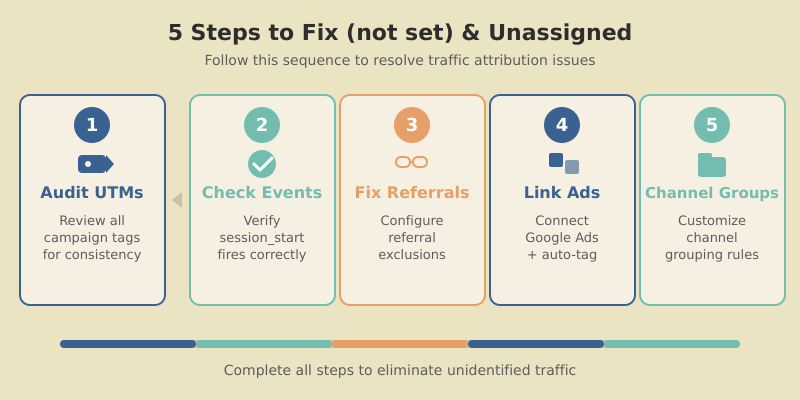
Work through these in order — they’re sequenced from highest impact to most situational.
When troubleshooting data quality issues in GA4, always start with DebugView. It shows you exactly what data GA4 is receiving in real time, before any processing or sampling. Most attribution problems become immediately obvious when you can see the raw event stream.
Step 1 — Audit Your UTM Tagging
Pull a report of all source/medium combinations for the last 90 days in Reports > Acquisition > Traffic acquisition (add secondary dimension “Session source / medium”). Then:
- Export the full list of source/medium values
- Identify campaigns or channels that show as
(direct) / (none)but shouldn’t be direct traffic (emails, social posts, ads) - Create a UTM naming convention document and share it with every team that creates links
- Retroactively add UTM parameters to all active campaign links
- Use a centralized UTM builder (Google’s Campaign URL Builder works, or build a shared spreadsheet)
If you’re running SEO campaigns that drive traffic through linked content on other sites, make sure those backlinks are tracked properly. My SEO strategy guide covers how to combine UTM tracking with your organic strategy without creating duplicate content issues.
Pro tip: Always exclude today and yesterday from your date range when analyzing “(not set)” traffic. GA4 has a processing delay of 24-48 hours, and unprocessed data temporarily shows as “(not set)” before Google’s systems classify it. Many people panic over spikes that resolve themselves within two days.
Step 2 — Verify session_start in DebugView
Install the Google Analytics Debugger extension, open your site in incognito, and navigate to GA4 > Admin > DebugView. You should see session_start fire on the first pageview with source, medium, and campaign parameters. If it’s missing or lacks attribution:
- GTM users: Verify your GA4 Configuration tag fires on “All Pages” with no blocking conditions (
GTM > Tags > GA4 Configuration) - gtag.js users: Ensure
gtag('config', 'G-XXXXXXX')runs before any other interaction events - SPA frameworks: Verify route changes trigger
page_viewevents that firesession_start
Step 3 — Configure Referral Exclusions
When users return from payment processors, auth providers, or third-party tools, the third-party domain shows as the referrer — creating a new session with wrong attribution. Configure this at Admin > Data Streams > [Your Stream] > Configure tag settings > Show more > List unwanted referrals.
Common domains to exclude:
- Payment gateways:
paypal.com,stripe.com,checkout.shopify.com - Auth providers:
accounts.google.com,auth0.com,login.microsoftonline.com - Your own subdomains (if not using cross-domain tracking)
This prevents GA4 from creating new sessions when users return from these domains, preserving original attribution.
Step 4 — Set Up Cross-Domain Tracking
If users move between domains (e.g., www.yoursite.com to app.yoursite.com), each transition without cross-domain tracking creates a new session and loses attribution. Configure at Admin > Data Streams > [Your Stream] > Configure tag settings > Show more > Configure cross-domain measurement:
- Add all your domains to the cross-domain configuration list
- GA4 will automatically append a
_glparameter to links between configured domains - Test by clicking links between your domains and verifying in DebugView that the session continues (no new
session_startevent fires) - Make sure no server-side redirects strip the
_glparameter
Step 5 — Link Google Ads Correctly
Without proper Ads-GA4 linking, paid traffic shows as “(not set)” or gets misattributed.
- Link accounts: Go to
GA4 > Admin > Product Links > Google Ads linksand verify your Ads account is connected - Enable auto-tagging: In Google Ads, go to
Account Settings > Auto-taggingand ensure “Tag the URL that people click through from my ad” is checked - Test the GCLID: Click one of your ads and check the landing page URL — it should contain a
gclidparameter. If not, check for redirect rules or URL parameter stripping in your CMS - Verify in GA4: In the Traffic acquisition report, paid traffic from linked accounts should appear as “Paid Search” — not Unassigned or “(not set)”
Admin > Data Streams > Configure tag settings > Adjust session timeout (max 7 hours 55 minutes). Longer sessions = fewer re-entries without attribution.
How to Fix “Unassigned” Traffic
Unassigned traffic is a classification problem with two fix paths: standardize your UTM values to match GA4’s defaults, or create Custom Channel Groups for your non-standard values. I recommend both.
Create Custom Channel Groups
Custom Channel Groups let you define classification rules that supplement or override GA4’s defaults. Go to Admin > Data Display > Channel Groups:
- Click “Create new channel group” (or edit the existing custom group)
- Review your Unassigned traffic in the Traffic acquisition report — note the source/medium values
- For each Unassigned source/medium, create a new channel or add a rule to an existing channel
- Use conditions like “Source matches regex” or “Medium exactly matches” to classify the traffic
Example custom rules:
- Push Notifications: Medium exactly matches
push→ Channel: “Push” - In-App Messages: Source exactly matches
in-app→ Channel: “In-App” - Partner Referrals: Medium exactly matches
partner→ Channel: “Partners” - QR Codes: Medium exactly matches
qr→ Channel: “QR Code”
Custom Channel Groups apply retroactively to historical data. As MeasureSchool’s GA4 channel group guide explains, this is the recommended approach for reclassifying existing traffic without changing active campaign UTMs.
Standardize UTM Medium Values
To fix the problem at the source, standardize your UTM values to match GA4’s expectations. Here’s the reference table:
| GA4 Channel | Required utm_medium |
Required utm_source |
Notes |
|---|---|---|---|
email |
Any (e.g., mailchimp) |
Must be lowercase email exactly |
|
| Paid Search | cpc or ppc |
Must match a search engine | google, bing, yahoo, etc. |
| Paid Social | paid or ppc |
Must match a social platform | facebook, linkedin, twitter |
| Organic Social | organic or social |
Must match a social platform | Source determines social vs. search |
| Display | display, banner, or cpm |
Any | Not cpc (that’s Paid Search) |
| Affiliate | affiliate |
Any | Must be exactly affiliate |
| Referral | referral |
Any | Auto-detected for most external links |
| SMS | sms |
Any | Added in GA4 — not in Universal Analytics |
| Audio | audio |
Any | For podcast and audio ad campaigns |
| Video | video |
Any | For video ad campaigns (YouTube pre-roll, etc.) |
Golden rule: Every UTM value should be lowercase, use hyphens instead of spaces, and match GA4’s expected values exactly. Create a shared UTM naming convention document and enforce it across all teams. When someone asks “Can I use utm_medium=newsletter?” — the answer is always no. Use email.
Quick Diagnostic Checklist
Work through each item in order to systematically resolve “(not set)” and Unassigned traffic.
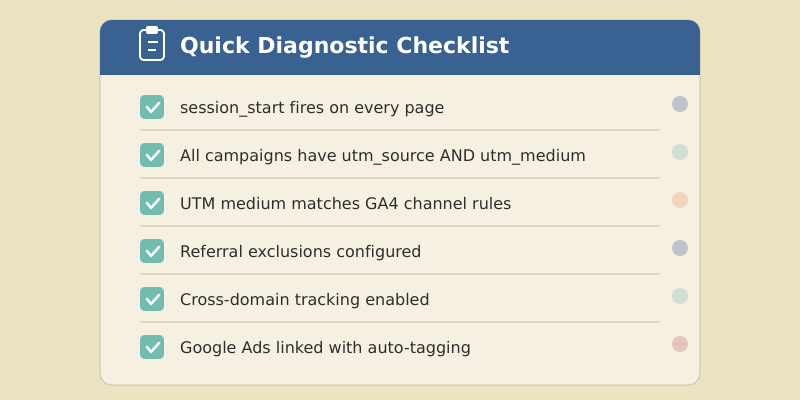
- Set your date range to exclude the last 48 hours — eliminates false positives from GA4’s processing delay
- Check DebugView for
session_start— does it fire on first pageview? Does it contain source/medium parameters? - Verify GTM/gtag.js loads on all pages — check new landing pages, subdomains, and app views
- Review Consent Mode — is behavioral modeling enabled? Accept some irreducible “(not set)” from consent-blocked users
- Audit active campaign UTMs — are all links tagged with lowercase, GA4-compatible values?
- Check Google Ads linking — account linked in
Admin > Product Links? Auto-tagging on? GCLID surviving redirects? - Review referral exclusions — payment processors, auth providers, and subdomains excluded?
- Test cross-domain tracking — does the
_glparameter pass correctly between domains? - Check session timeout — is 30 minutes appropriate for your content?
- Review Unassigned values — do any need Custom Channel Group rules?
- Check audience triggers — verify no audience-triggered events interfere with attribution
- Document your UTM convention — share and enforce naming rules across all teams
15-30%
5-10%
2-5%
Frequently Asked Questions
GA4 > Admin > Product Links > Google Ads links and verify the connection is active. Also check that auto-tagging is enabled in Google Ads and that your landing page URLs don’t strip the gclid parameter through redirects.
Conclusion
“(not set)” and Unassigned traffic directly undermine data-driven decisions about budget allocation, campaign optimization, and channel strategy. Fixing your GA4 not set traffic source issues is systematic, not mysterious. Start with the quick wins: standardize UTM conventions, create Custom Channel Groups, and verify your Google Ads link. Then work through the deeper fixes: audit session_start in DebugView, configure referral exclusions, and set up cross-domain tracking.
Most properties can go from 20%+ unattributed traffic to under 5% within two weeks. The remaining percentage will always be there — consent-blocked users, edge cases, and processing delays. The goal isn’t perfection; it’s getting your data accurate enough to trust your decisions.