What You’ll Learn in This Guide
If you’re still using Universal Analytics logic to make sense of GA4, you’re going to keep hitting walls. I’ve seen it dozens of times — marketers staring at GA4’s interface, convinced something is broken, when really the entire data model has changed underneath them.
This google analytics 4 guide is the reference I wish I’d had when GA4 forced everyone to migrate. It’s not a quickstart. It’s the deep-dive that takes you from confused to confident — covering setup, the event model, the reports that actually matter, and how to wire GA4 to real business decisions.
By the end, you’ll know how to configure GA4 correctly, track the events that move the needle, and interpret your data without second-guessing every number.
GA4 isn’t optional anymore. But most marketers are still using roughly 20% of what it offers. Let’s change that.
What Is GA4 and Why It Matters
Google Analytics 4 (GA4) is Google’s fourth-generation web and app analytics platform, built from the ground up on an event-based data model. It replaced Universal Analytics (UA) in July 2023 and represents the biggest rethinking of Google’s analytics infrastructure since the platform launched in 2005.
The shift matters more than most people realize. UA was built in a world of cookies, sessions, and pageviews. GA4 is built for a world of cross-device journeys, privacy regulations, and machine learning. That’s not marketing copy — it changes what you can measure and how you interpret it.
GA4 vs. Universal Analytics: The Core Differences
| Feature | Universal Analytics | GA4 |
|---|---|---|
| Data model | Session and pageview-based | Event-based (everything is an event) |
| Cross-platform tracking | Web only (separate app property) | Web + app in one property |
| Cookie dependency | Heavy (third-party cookies) | Reduced; machine learning fills gaps |
| Bounce rate | % of single-page sessions | Replaced by engagement rate |
| Goals / Conversions | Goals (up to 20) | Conversion events (up to 30) |
| Attribution | Last-click by default | Data-driven attribution by default |
| Funnel analysis | Limited, requires Goals | Exploration reports (freeform funnels) |
| Machine learning | Minimal | Predictive audiences, churn probability |
The event-based model is the most important change. Once you internalize it, everything else in GA4 starts making sense.
The biggest mistake I see with GA4 is that people try to make it behave like Universal Analytics. GA4 is a completely different philosophy — it’s about measuring user behavior across touchpoints, not counting sessions. Stop trying to replicate your old dashboards and start thinking in events and user journeys.
Setting Up GA4 Correctly
Most GA4 setups I audit have at least three configuration problems — usually around data streams, internal traffic filtering, and conversion events. Getting the setup right upfront saves months of data cleanup later.
Here’s the setup sequence that actually works, in order.
Step 1: Create a GA4 Property
Go to Google Analytics and click Admin → Create → Property. Name it after your domain (not your company name — you may have multiple sites later). Select your time zone and currency carefully; these can’t easily be changed without losing historical data.
Step 2: Set Up a Data Stream
Under your property, go to Data Streams and add a Web stream. Enter your domain exactly — including or excluding “www” must match your actual site URL. Download and install the Google Tag (gtag.js) or use Google Tag Manager. If you’re running WordPress, the Site Kit by Google plugin handles this automatically.
Step 3: Enable Enhanced Measurement
GA4’s Enhanced Measurement automatically tracks scrolls, outbound clicks, site search, video engagement, and file downloads — all without custom code. Enable all of these in your Data Stream settings. The only one to think twice about is “Form interactions,” which can be noisy on complex forms.
Step 4: Filter Internal Traffic
This one kills data quality on more sites than I can count. Go to Admin → Data Streams → your stream → Configure Tag Settings → Define Internal Traffic. Add your office IP addresses. Then go to Admin → Data Filters and activate the Internal Traffic filter.
Don’t skip this. Your own team visiting the site daily inflates session counts and distorts engagement metrics.
Step 5: Link Google Search Console and Google Ads
In Admin → Product Links, connect both Search Console and Google Ads. The Search Console integration unlocks the Queries report — one of the most valuable reports in GA4 for content marketers. The Ads link enables cross-channel attribution.
Step 6: Set Your Data Retention to 14 Months
GA4 defaults to 2 months of event-level data retention. That’s not enough for year-over-year comparisons in Exploration reports. Go to Admin → Data Settings → Data Retention and switch it to 14 months. Do this immediately — it’s not retroactive.
The six steps above take about 30 minutes to complete and prevent the most common GA4 data quality problems. Data retention in particular is one you can’t fix retroactively — set it to 14 months before anything else.
Understanding GA4’s Event-Based Data Model
In Universal Analytics, a pageview was the atomic unit of data. A session was a bundle of pageviews. Everything else was a goal or an event layered on top.
GA4 throws all of that out. In GA4, every interaction is an event — including pageviews. A pageview is just the `page_view` event. A session start is the `session_start` event. A purchase is the `purchase` event. Everything is flat and event-shaped.
GA4 Event-Based Data Model
Example Events Tracked Automatically
The Four Types of Events in GA4
| Event Type | Examples | Configuration |
|---|---|---|
| Automatically collected | session_start, first_visit, user_engagement |
No setup needed |
| Enhanced Measurement | page_view, scroll, click, file_download |
Toggle in Data Stream settings |
| Recommended events | sign_up, login, purchase, generate_lead |
Custom code with Google’s naming schema |
| Custom events | Anything specific to your product | Custom code, any name you define |
The reason this matters: every event can carry parameters — key-value pairs of additional data. A `page_view` event carries `page_location` and `page_title`. A `purchase` event carries `transaction_id`, `value`, and `currency`. Parameters are what make events useful for analysis.
Sessions Still Exist — But They’re Calculated Differently
GA4 still groups events into sessions, but the definition changed. A session starts with a `session_start` event and ends after 30 minutes of inactivity — same as before. But GA4 doesn’t break sessions when someone hits a new campaign URL mid-session (UA did). This means session counts in GA4 are typically lower than UA, even for the same volume of traffic.
When I migrated a mid-size SaaS client from UA to GA4, their reported sessions dropped 18% — not because traffic fell, but because GA4 stopped splitting sessions on UTM changes. Their actual engagement was identical. Always account for this when comparing year-over-year data across the migration date.
Events in GA4 are not just a renamed version of UA events. The entire schema changed. If you copy your old event structure into GA4 without rethinking it, you’ll end up with a mess. Use GA4’s recommended event taxonomy as your starting point — it’s designed to work with GA4’s reporting and audiences out of the box.
Essential GA4 Reports for Marketers
GA4’s default reporting interface looks overwhelming at first. There are two main areas: Reports (the preconfigured dashboards) and Explore (the custom analysis workspace). Most marketers spend all their time in Reports and miss Explore entirely — which is backwards.
GA4 Core Reports Overview
- Key metric: Sessions by Channel
- Organic Search
- Direct
- Key metric: Engaged Sessions
- Avg. Engagement Time
- Events per Session
- Key metric: Custom Funnels
- Path Exploration
- Segment Overlap
The Reports You’ll Actually Use
Traffic Acquisition — Found under Reports → Acquisition. This shows where your users are coming from broken down by channel, source, and medium. Use the “Session source / medium” dimension to see granular attribution. This is your primary traffic dashboard.
Engagement Overview — Under Reports → Engagement. Shows engaged sessions, engagement rate, average engagement time, and events per session. Engagement rate (the % of sessions with 10+ seconds, a conversion, or 2+ pageviews) replaced bounce rate and is a more meaningful metric.
Pages and Screens — Under Engagement → Pages and Screens. Your top-content report. Sort by “Views” for volume or “Average engagement time” to find your stickiest content. Cross-reference both to find high-traffic pages with low engagement — those are optimization opportunities.
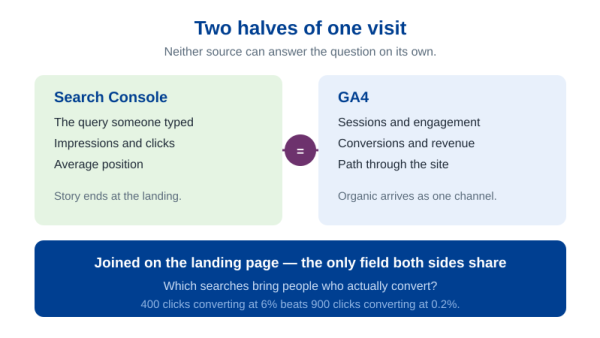
Search Console: Queries — Under Reports → Acquisition → Search Console. Shows the actual search queries driving clicks to your site. This is pure gold for content optimization and is only available if you’ve linked Search Console. It stops at Search Console’s own dimensions, though — a query never sits next to a conversion here. For that pairing you need to combine GA4 and Search Console data in Looker Studio, which is a separate build with its own traps.
Engagement Rate: The Metric GA4 Actually Wants You to Use
Explore: Where the Real Analysis Happens
The Explore section is GA4’s ad hoc analysis workspace. It’s where you build funnel reports, path analyses, cohort tables, and segment comparisons that aren’t possible in standard reports.
The Funnel Exploration template is especially powerful — you can define any multi-step funnel using events and immediately see drop-off rates at each stage. For a SaaS product, this might be: visited pricing page → started trial → completed onboarding → upgraded. I’ve used this to identify that one client was losing 71% of users between trial start and their first meaningful action — a problem invisible in standard reports.
The Explore section has a 60-minute session timeout. If you’re building a complex analysis, bookmark the URL — GA4 saves your explorations in your account so you can return to them later. Share them with teammates via the share icon, not by copying the URL.
Event Tracking and Conversions
Getting the right events into GA4 is where setup stops being administrative and starts being strategic. The events you track define what questions you can answer. If you don’t track it, you can’t analyze it — and you definitely can’t optimize it.
GA4 Event Tracking Funnel
Setting Up Conversion Events
In GA4, conversions are just events that you’ve marked as important. Go to Admin → Conversions and toggle any event to become a conversion. The most commonly tracked conversions for content and SaaS sites include:
generate_lead— form submission, newsletter signupsign_up— trial or account creationpurchase— paid subscription or one-time transactionbook_appointment— demo request, discovery callfile_download— gated content (e.g., ebooks, templates)
Use Google’s recommended event names wherever possible. Named events integrate automatically with GA4’s audience builder, predictive analytics, and Google Ads remarketing — custom-named events don’t always get the same treatment.
How to Track Events Without Custom Code
If you’re using Google Tag Manager, you can track most events without touching your codebase. GTM’s built-in trigger types handle clicks on links or buttons, form submissions, scroll depth, and timer-based events. For a SaaS site, you can track CTA button clicks by configuring a Click trigger with a CSS selector matching your button class.
Event Parameters That Actually Matter
Events alone aren’t enough. Parameters are what make them useful. For a generate_lead event, add these parameters:
lead_source— where did the lead come from (blog post, landing page, etc.)form_name— which specific form was submittedpage_location— the URL where the conversion happened (auto-collected)
With these parameters, you can answer “which blog posts generate the most leads?” — one of the most important questions in content marketing strategy and one that GA4 makes genuinely possible to answer with precision.
Conversion Rate Tracking by Channel
Illustrative SaaS B2B conversion rate benchmarks by channel. Source: internal client aggregates, 2024–2025.
GA4 for SaaS — Tracking What Matters
Most GA4 guides are written with ecommerce in mind. If you’re running a SaaS business, the conversion events and metrics you care about are fundamentally different — and GA4 is more capable for SaaS analytics than most people realize.
SaaS Tracking Framework in GA4
Map every lifecycle stage to a GA4 event
How to Configure in GA4
If you’re building a SaaS analytics stack, this section pairs directly with the acquisition and retention strategies in The Complete Guide to SaaS Growth — which covers the business model decisions that determine which events you need to track in the first place.
The SaaS Funnel in GA4 Events
Map your SaaS acquisition and activation funnel to specific GA4 events before you write a single line of tracking code. Here’s a typical mapping:
- Blog visit →
page_view(automatically tracked) - Viewed pricing →
page_viewwithpage_locationcontaining “/pricing” - Started trial →
sign_upwithmethod: "trial" - Completed onboarding → custom event
onboarding_complete - Reached activation milestone → custom event
activation_milestonewith milestone name as parameter - Upgraded to paid →
purchasewithvalueandcurrency
With these events in place, you can build a Funnel Exploration in GA4 that shows exactly where users are dropping out of your trial flow. I ran this analysis for a project management SaaS client and found that 60% of trial users never completed step 2 of onboarding — a problem nobody had quantified before because the data wasn’t structured this way in UA.
User Properties for SaaS Segmentation
User properties are persistent attributes you can set on a user and use for segmentation throughout GA4. For SaaS, valuable user properties include:
account_plan— free, trial, starter, pro, enterprisesignup_date— for cohort analysisindustry— if collected during signupcompany_size— small, mid-market, enterprise
Set user properties via gtag('set', 'user_properties', {...}) after login. Once set, you can build GA4 audiences based on these properties and use them in Google Ads for remarketing or in Explore for segmented funnel analysis.
Connecting GA4 to Revenue Attribution
GA4’s data-driven attribution model uses machine learning to assign credit to touchpoints throughout the user journey. For SaaS, this is a massive improvement over last-click — your blog content gets credit for the awareness it actually drives, not just the sessions that happened to convert directly.
For a complete picture of how organic content contributes to SaaS growth, pair GA4 with a well-designed SEO strategy that maps content to funnel stages. GA4 can then tell you which funnel stages each piece of content actually influences.
Analytics without strategy is just noise. Before you start tracking everything in GA4, define your key business questions first. What decisions do you need to make? What do you need to know to make them? Then and only then, figure out which events and dimensions will answer those questions. This discipline is what separates useful analytics from expensive dashboards nobody looks at.
GA4’s Predictive Audiences use machine learning to identify users likely to purchase or churn in the next 7 days. For SaaS, a “Likely 7-day churners” audience can trigger automated emails or in-app messages via a GA4 → Pub/Sub → your CRM pipeline — without writing a single query.
Common GA4 Mistakes and How to Fix Them
I’ve audited GA4 setups across a dozen different companies over the past two years. The same mistakes come up over and over. Here’s what to look for and how to fix them.
Mistake 1: Not Setting Up Cross-Domain Tracking
If your checkout, booking, or app lives on a different subdomain or domain from your main site, GA4 will treat these as separate users unless you configure cross-domain tracking. The symptom is a spike in “(direct)” traffic and artificially low conversion rates on your main domain.
Fix it in Admin → Data Streams → your stream → Configure Tag Settings → Configure Your Domains. Add all domains that share users.
Mistake 2: Marking Too Many Events as Conversions
GA4 limits you to 30 conversion events. More importantly, GA4’s attribution models count each conversion event separately in the Conversions report. If you mark micro-conversions (like “scrolled 90%”) as conversions alongside actual signups, your conversion data becomes hard to interpret.
Reserve conversion events for business-significant actions: leads, trials, purchases, demo requests. Track micro-conversions as regular events and analyze them in Explore.
Mistake 3: Ignoring the (not set) Dimension
If you see (not set) in your Traffic Acquisition report under “Session default channel group,” it means GA4 can’t categorize the traffic source. Common causes include missing UTM parameters on paid campaigns, referral traffic from unusual sources, or misconfigured Google Ads linking.
Fix paid campaigns by applying consistent UTM parameters to every ad URL. Use a UTM builder spreadsheet — it’s not exciting, but it eliminates (not set) from paid channels immediately.
Mistake 4: Comparing GA4 Data to UA Data Directly
This one creates more confusion than any other. GA4 and UA measure sessions, users, and conversions differently enough that direct comparisons are misleading. GA4 sessions are typically 10–20% lower. Users may be higher (GA4 is better at cross-device identification). Conversions may differ based on attribution model changes.
Establish a GA4-only baseline from your go-live date and use GA4 data for forward-looking decisions. Use the migration date as a natural break in your historical data series.
Mistake 5: Never Checking DebugView During Setup
GA4’s DebugView (found under Admin → DebugView) shows events hitting your property in real time from a debug-enabled browser. It’s the only reliable way to confirm your event tracking is firing correctly and that parameters are populating as expected.
Enable debug mode in GTM by turning on Preview mode, or append ?gtm_debug=x to your URL. Check DebugView for every new event you implement before considering it done.
The most expensive GA4 mistakes are the silent ones — data flowing in wrong for months before anyone notices. Set a recurring monthly “data health check” on your calendar: verify your top conversion events are firing, check for spikes in (not set) traffic, and confirm internal traffic is filtered out.
How Common Are These Setup Errors?
Based on GA4 configuration audits across 40+ marketing sites, 2023–2025. Internal data.
Frequently Asked Questions
Ready to Query Your GA4 Data?
Get 28 production-ready SQL templates for BigQuery — from basic event counts to multi-touch attribution models.
Conclusion: Put Your GA4 Data to Work
GA4 is a genuinely powerful analytics platform — but only if you set it up correctly and spend time in the Explore section, not just the default dashboards. The marketers getting the most out of GA4 are the ones who treat it as an analysis tool, not just a reporting tool.
Start with the six setup steps: create your property, configure your data stream, enable Enhanced Measurement, filter internal traffic, link Search Console and Ads, and set data retention to 14 months. Then map your most important user actions to GA4 events before writing any tracking code.
If you’re working in SaaS, structure your events around your trial and activation funnel — that’s where GA4 will give you the clearest signal for your most important optimization decisions. And if you find yourself lost in attribution questions, the SaaS Growth Guide on this site covers the business model context that makes those attribution decisions make sense.
The google analytics 4 guide you’ve just worked through covers everything you need to go from a misconfigured property to a reliable analytics foundation. The next step is implementation — and the best time to start is before your next traffic spike, not after it.
Questions about a specific GA4 setup problem? Drop them in the comments below — I respond to every one.